AI-Powered Business Automation Platform

Empowering everyday business users to automate workflows using natural language

Kognitos set out to reinvent business automation by enabling non-technical users to automate workflows using natural language (english). The goal was to evolve the platform from a technically powerful but expert-dependent system into an intuitive, AI-native interface accessible to everyday business users in operations, finance, etc.

COLLABORATORS
  • Rushil Khurana
  • Mudra Nagda
MY ROLE
  • UX Design
  • UI Design
  • Product Design
  • Prototyping (Figma + HTML/CSS/JS)
  • Innovation
ACCOMPLISHMENTS
  • Led product design for the V2 of their web-based business automation application.
  • Collaborated with head of design and engineering team to understand limitations and iterate on the product.
  • V2 Product has helped Kognitos sign 5 new enterprise customers.
PROBLEM

How can we empower everyday business users to automate workflows using natural language alone?

SCOPE

Large B2B Enterprise SaaS
Less tech-savvy companies typically (e.g. Coke, Pepsi, Wells Fargo)
Business users typically in operations, finance, HR, etc.

RESEARCH

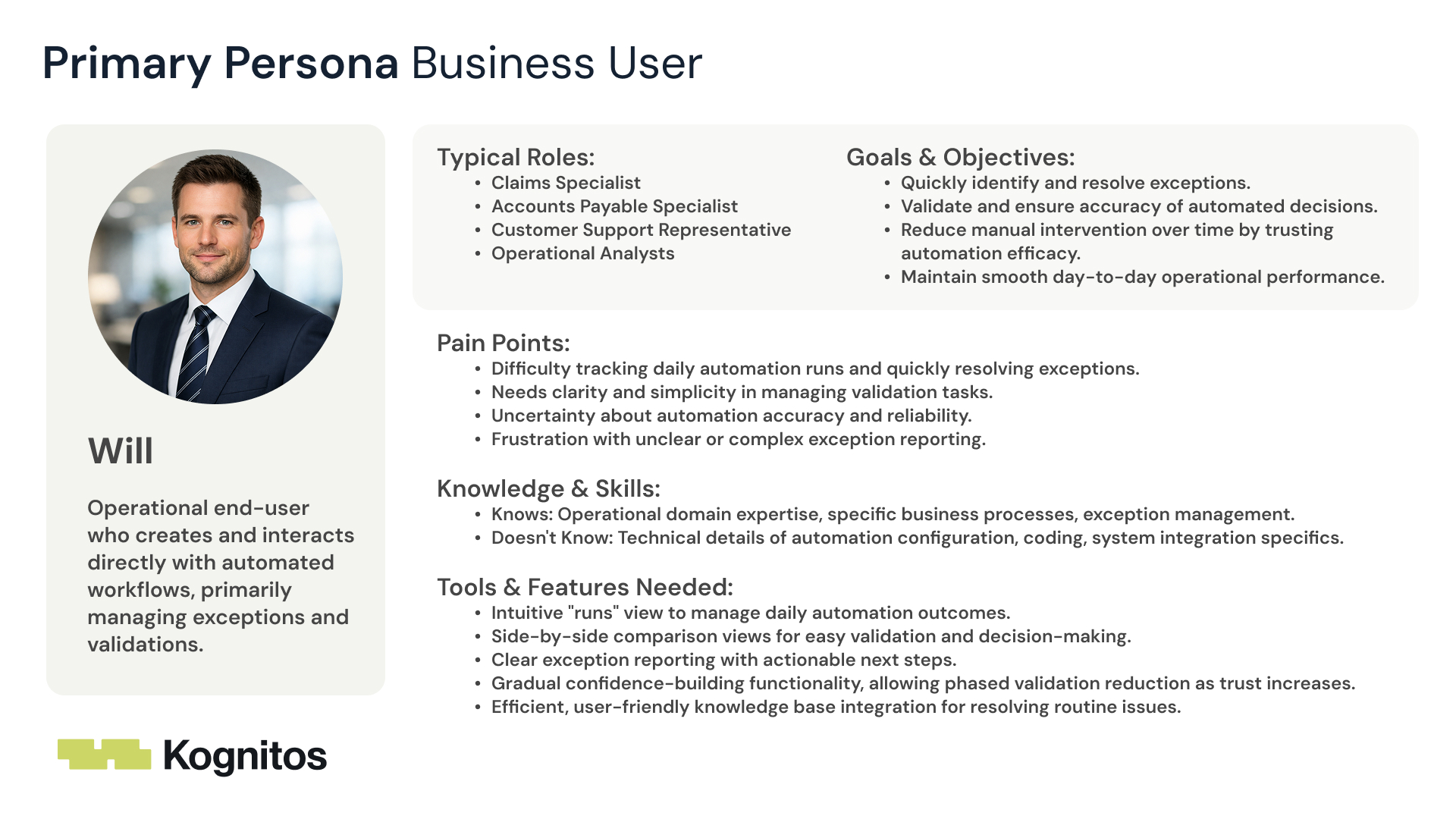
Persona

The primary persona is a business user who is not particularly tech-savvy and needs to automate workflows using natural language (english).

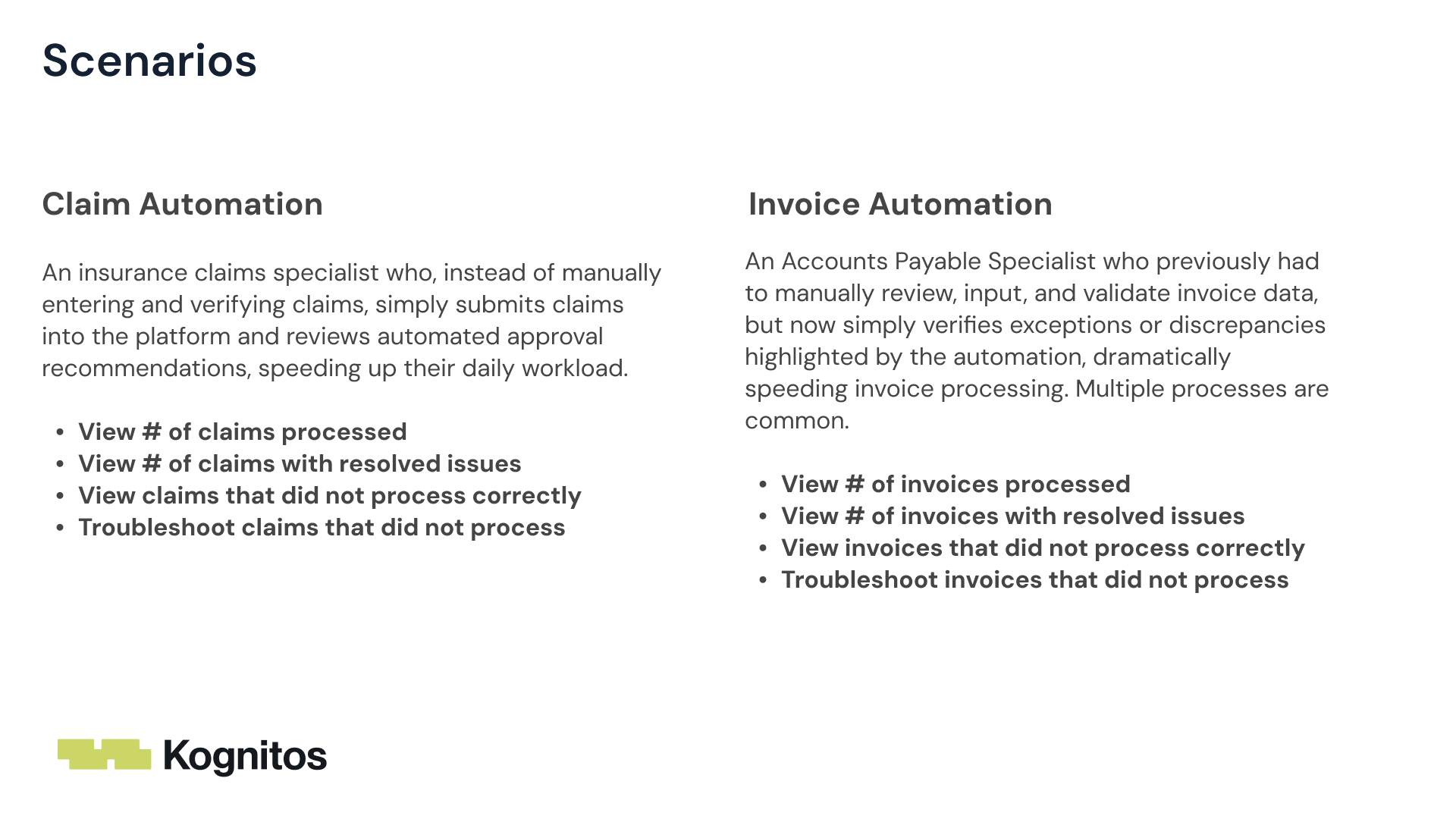
Scenarios

Typical example scenarios for the software include things like automating claims processing, or automating invoice processing.

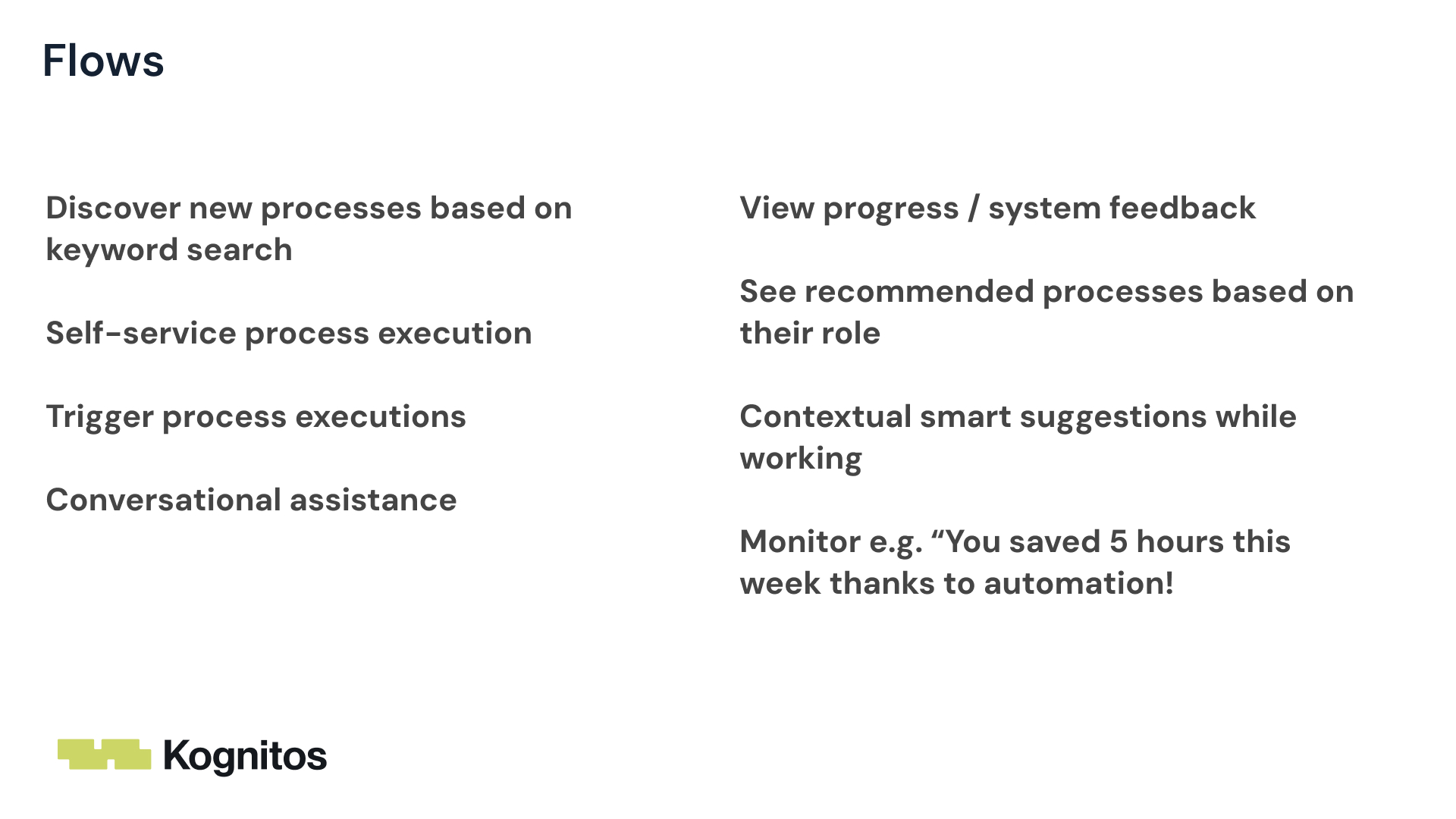
Flows

Key flows that needed to be designed.

First Iteration (Low Fidelity)

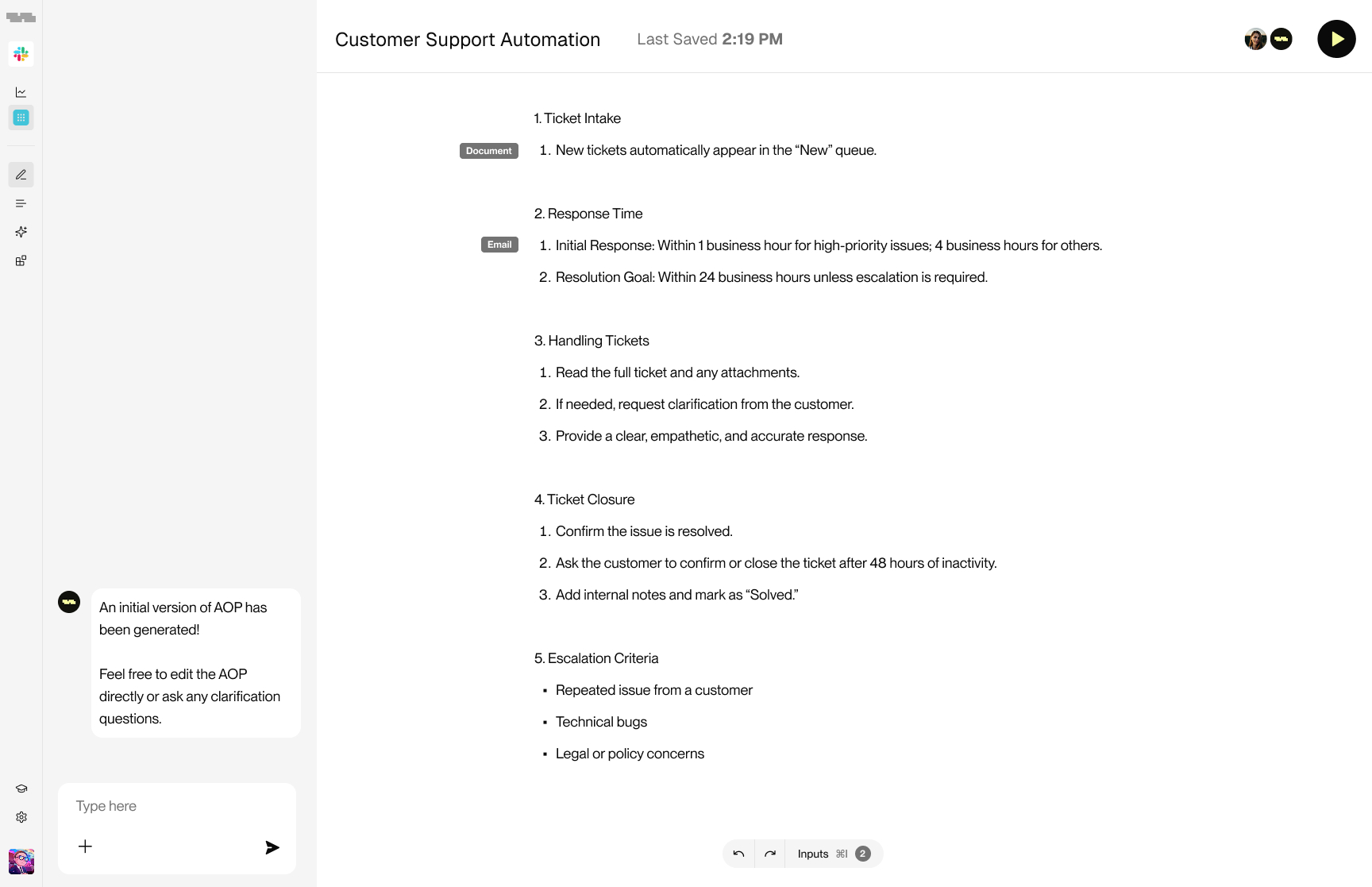
An end-to-end design and prototype that allows users to describe an automation using natural language, deal with clarifications and errors, iterate on it, and then test the automation.

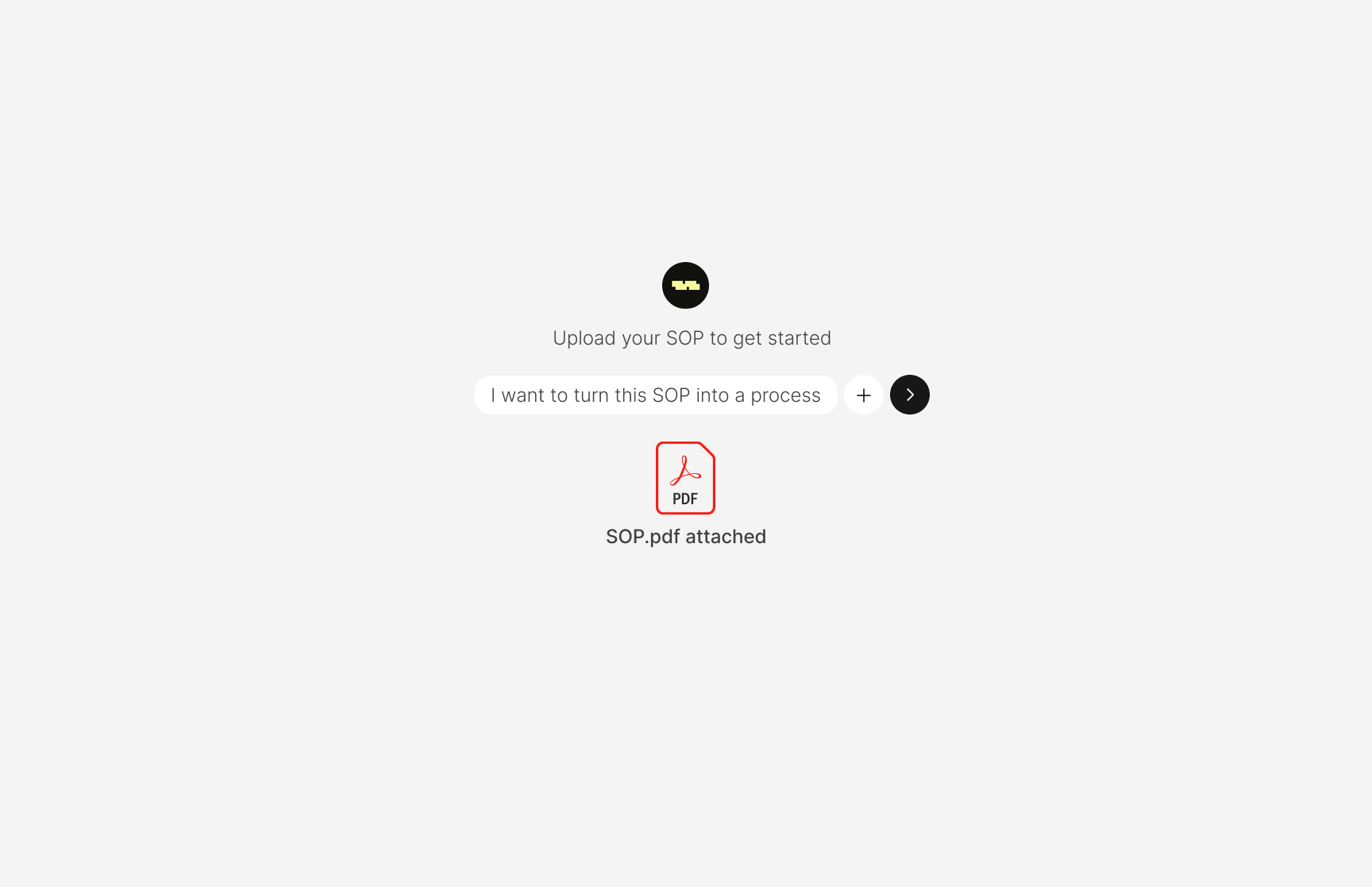
Initialize

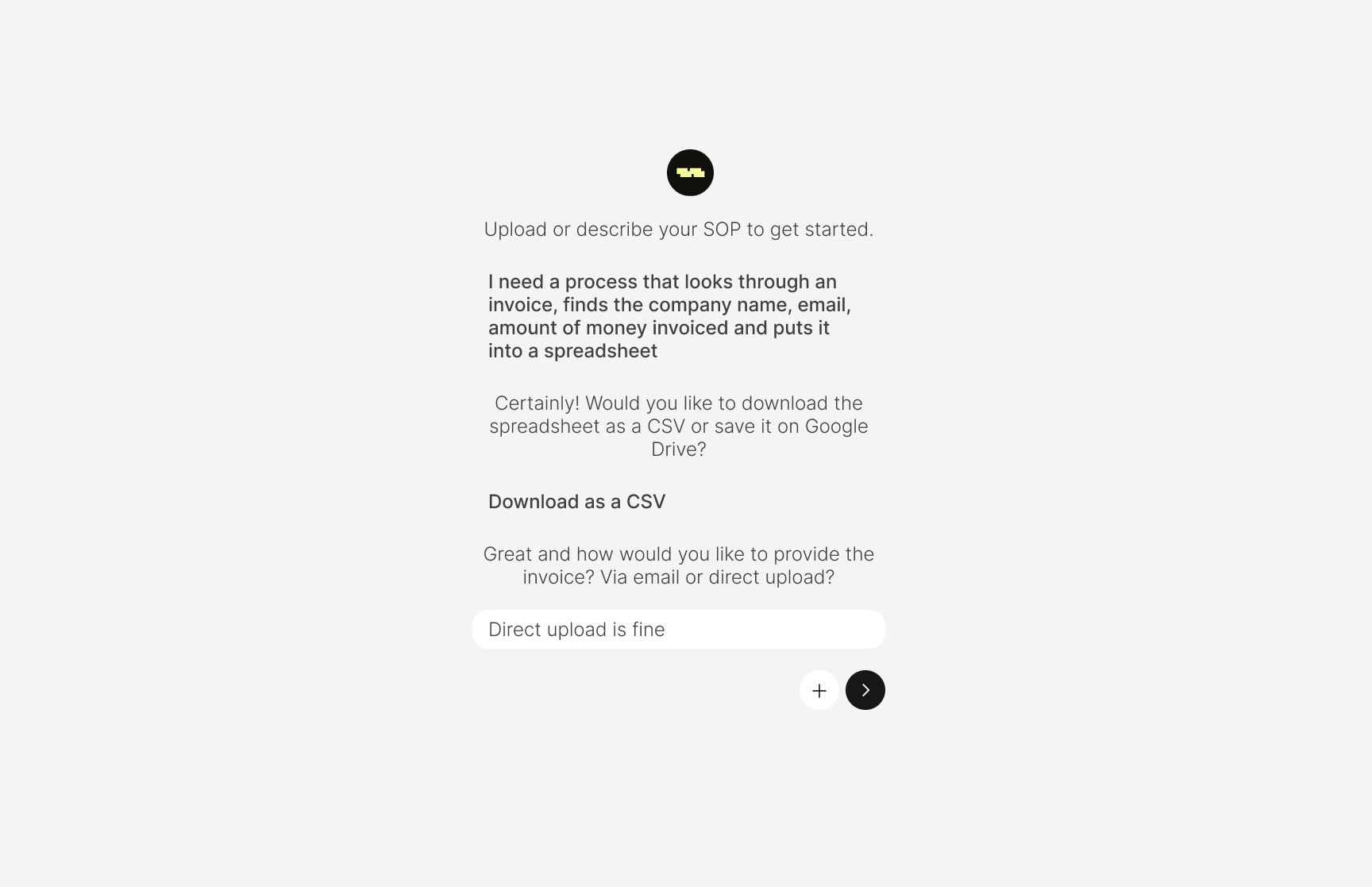
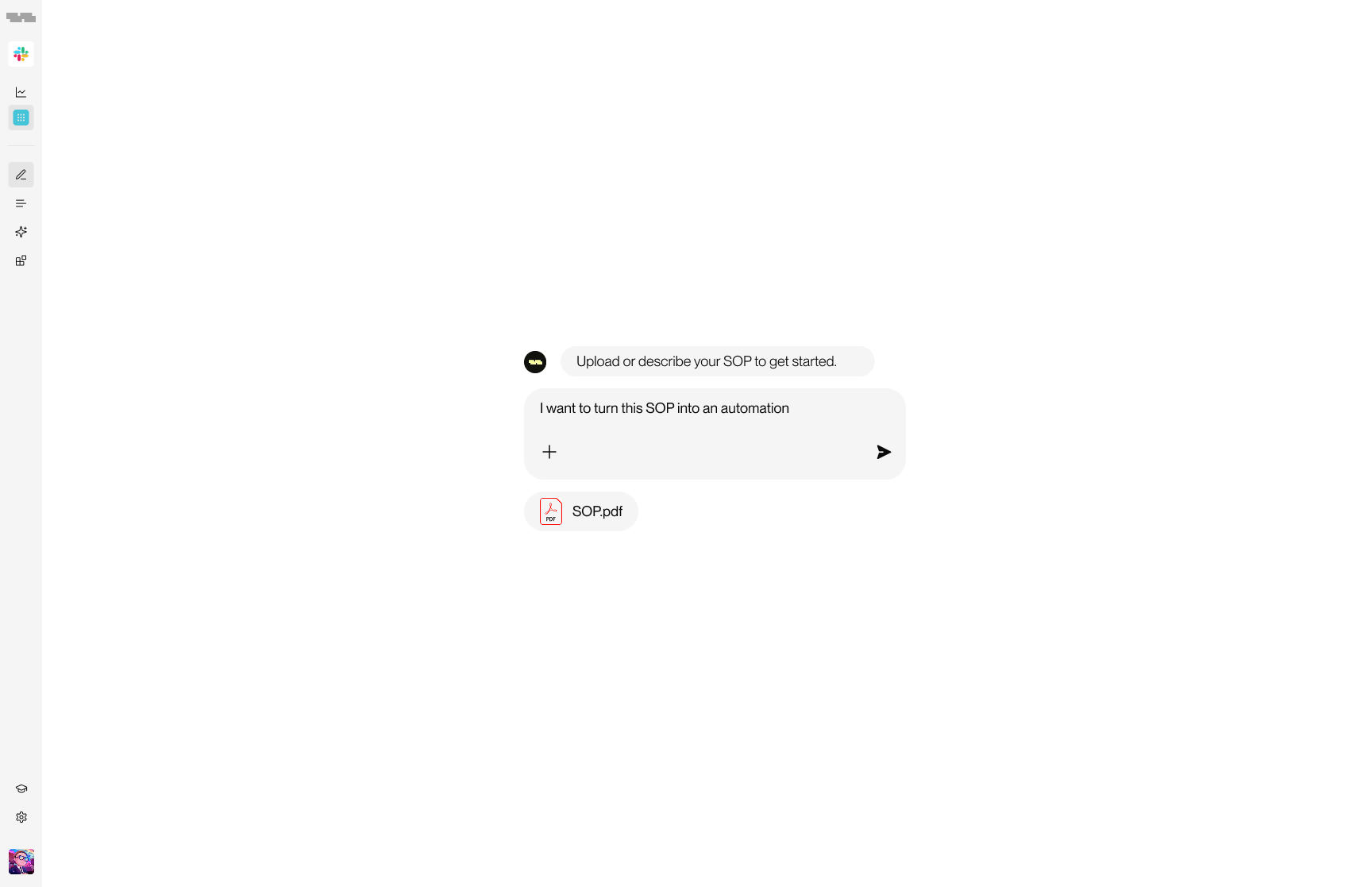
Users start by describing the automation they want to create.

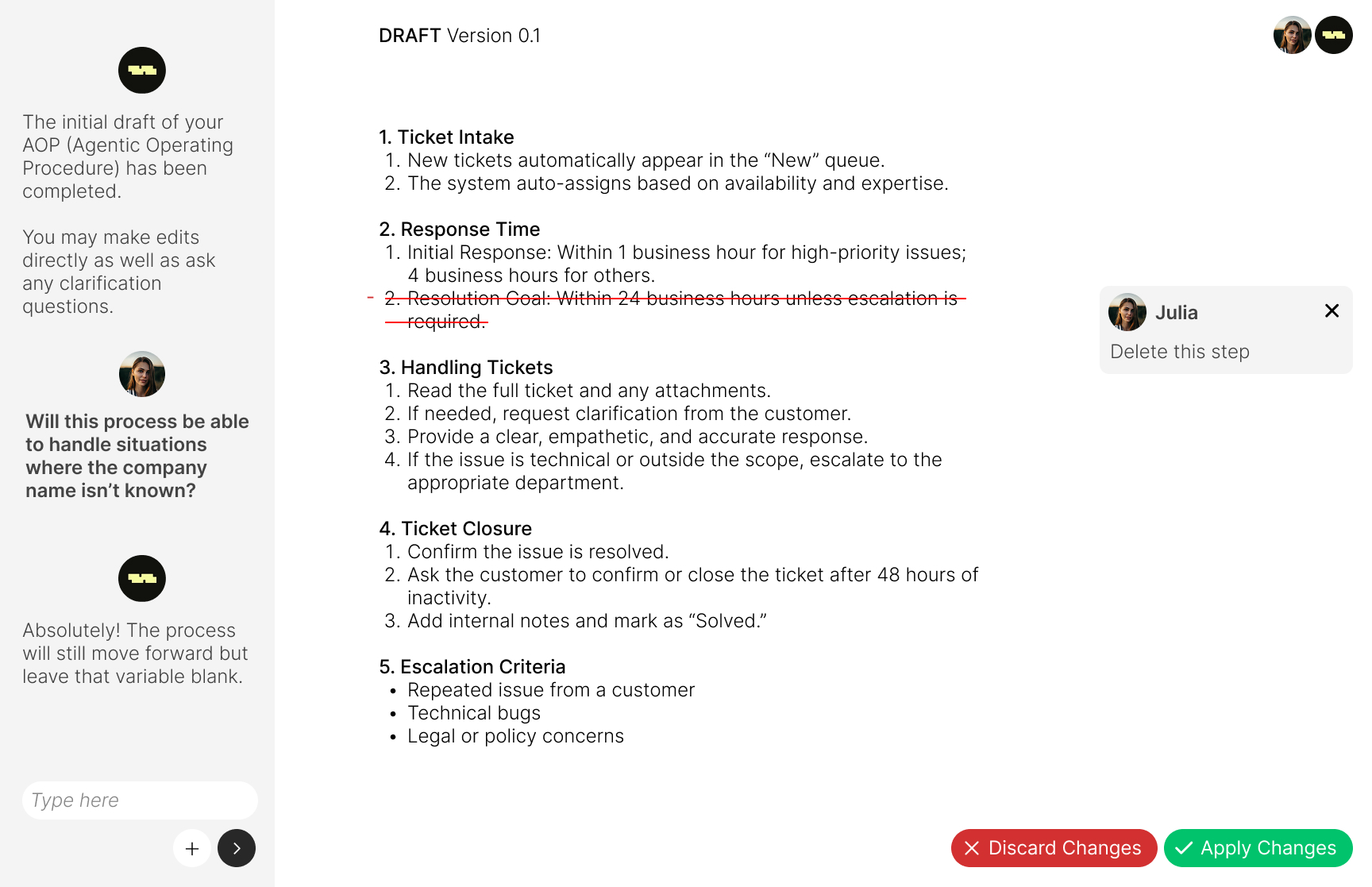
Edit

Users can edit the automation by writing directly in englsih or prompting the Kognitos agent. The agent detects issues or clarifications.

Run

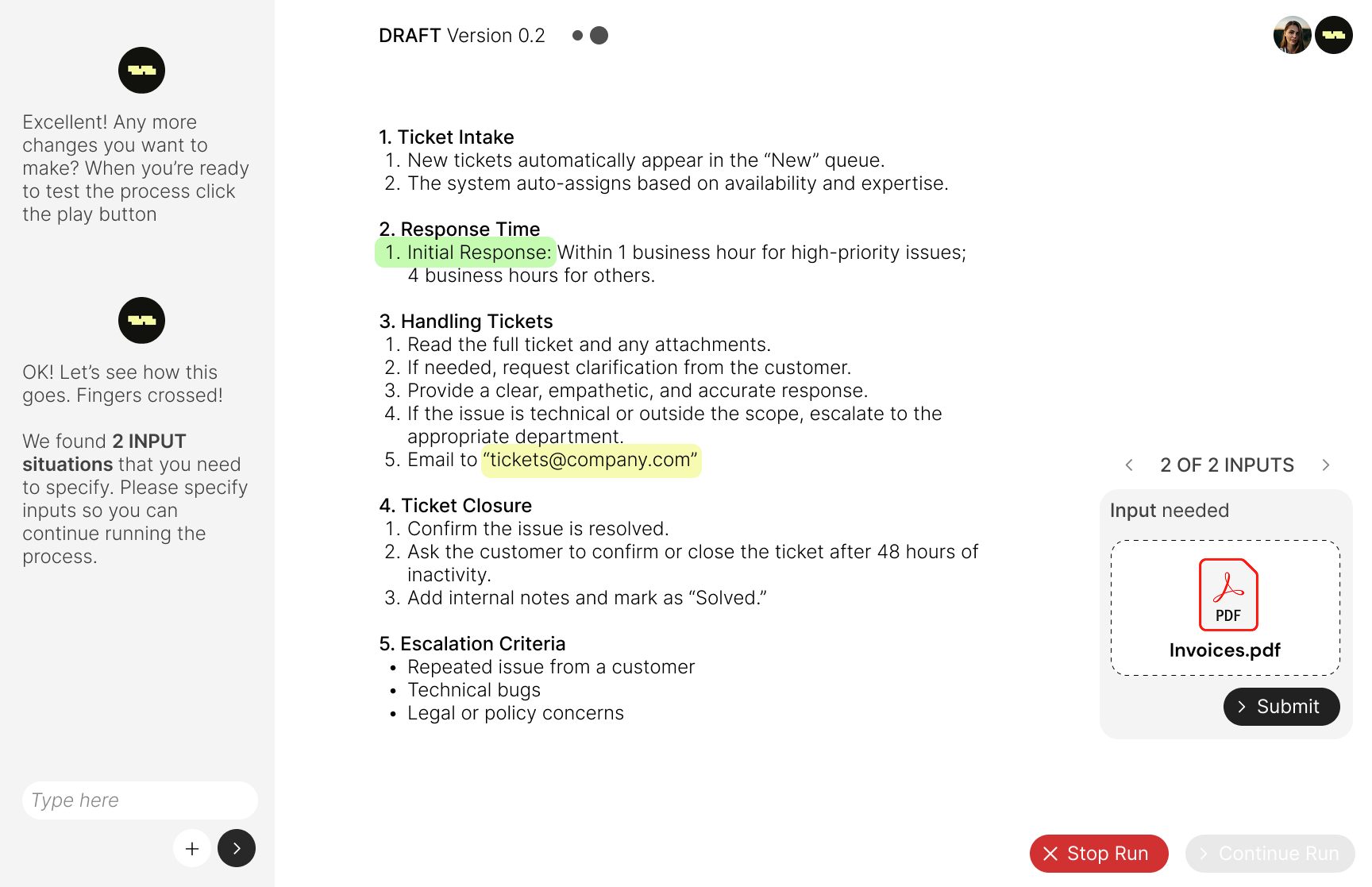
Users now run the automation and see the results. The user has to provide inputs. Errors are sometimes detected and the user is prompted to fix them.

Results

Users can deploy the automation to their system.

Design Trade-off

Version A - Initial Prompt Only

The system take the initial prompt and runs with it. Clarifications happens after it creates the intial SOP (Standard Operating Procedure).

Version B - Clarification Conversation

The system asks for clarifications before it creates the intial SOP. This ensures it can create a more accurate SOP to start with.

Insights

After informal usability testing with ~15 participants and discussions with internal stakeholders, we gained the following insights:

Insight 1

The system should take the initial prompt and run with it. Clarifications can happen after it creates the intial SOP in a more contextual way.

Insight 2

Adding inputs should happen in a more contextual way so that the user can go through them one-by-one and ensure they are valid.

Insight 3

The run results need to be a much more interactive and exploratory experience versus static information.

Interactive Prototype

Second Iteration (High-Fidelity)

I designed and built a high-fidelity prototype that addresses the insights gained from the first iteration as well as uses Kognitos design system.

Initialize

Users start by describing the automation they want to create.

Edit

Users can edit the automation by writing directly in englsih or prompting the Kognitos agent. The agent detects issues or clarifications.

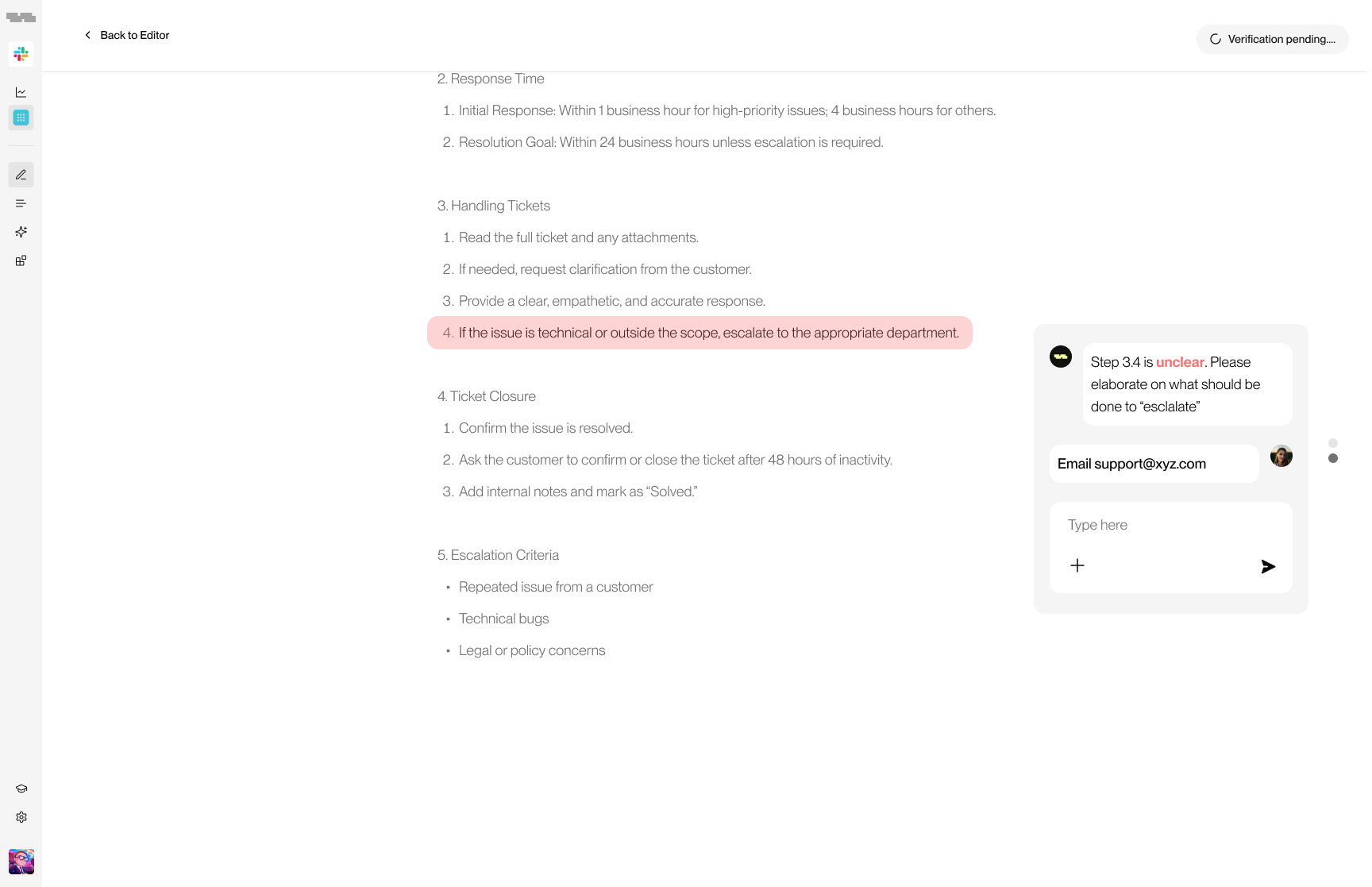
Clarifications

Users must clarify details of the automation before it can run.

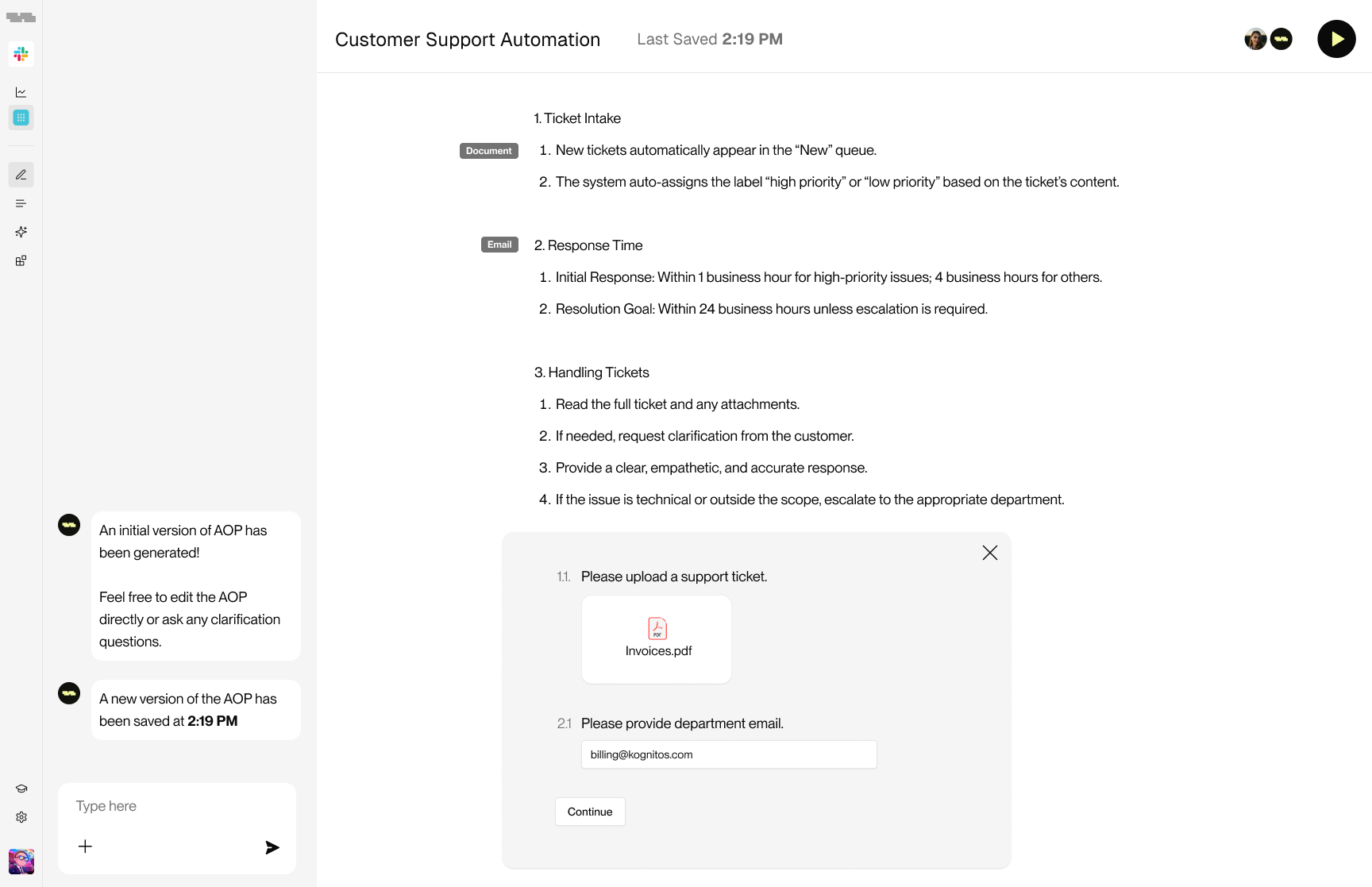
Inputs

Users must provide valid inputs for the automation to run (e.g. email addresses, files, dates, etc.).

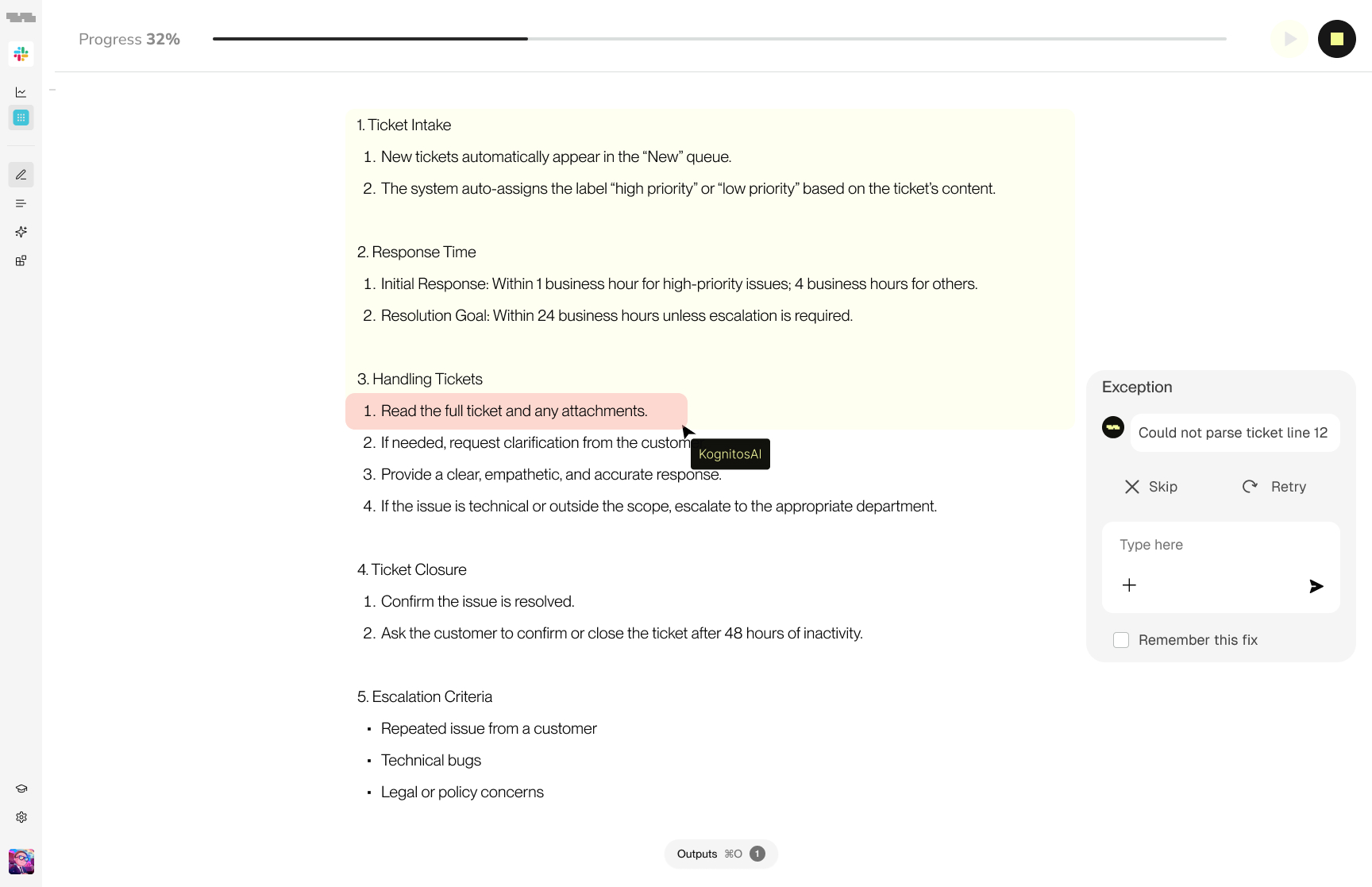
Handle Exceptions

Users sometimes have to handle exceptions and errors that occur during the automation running.

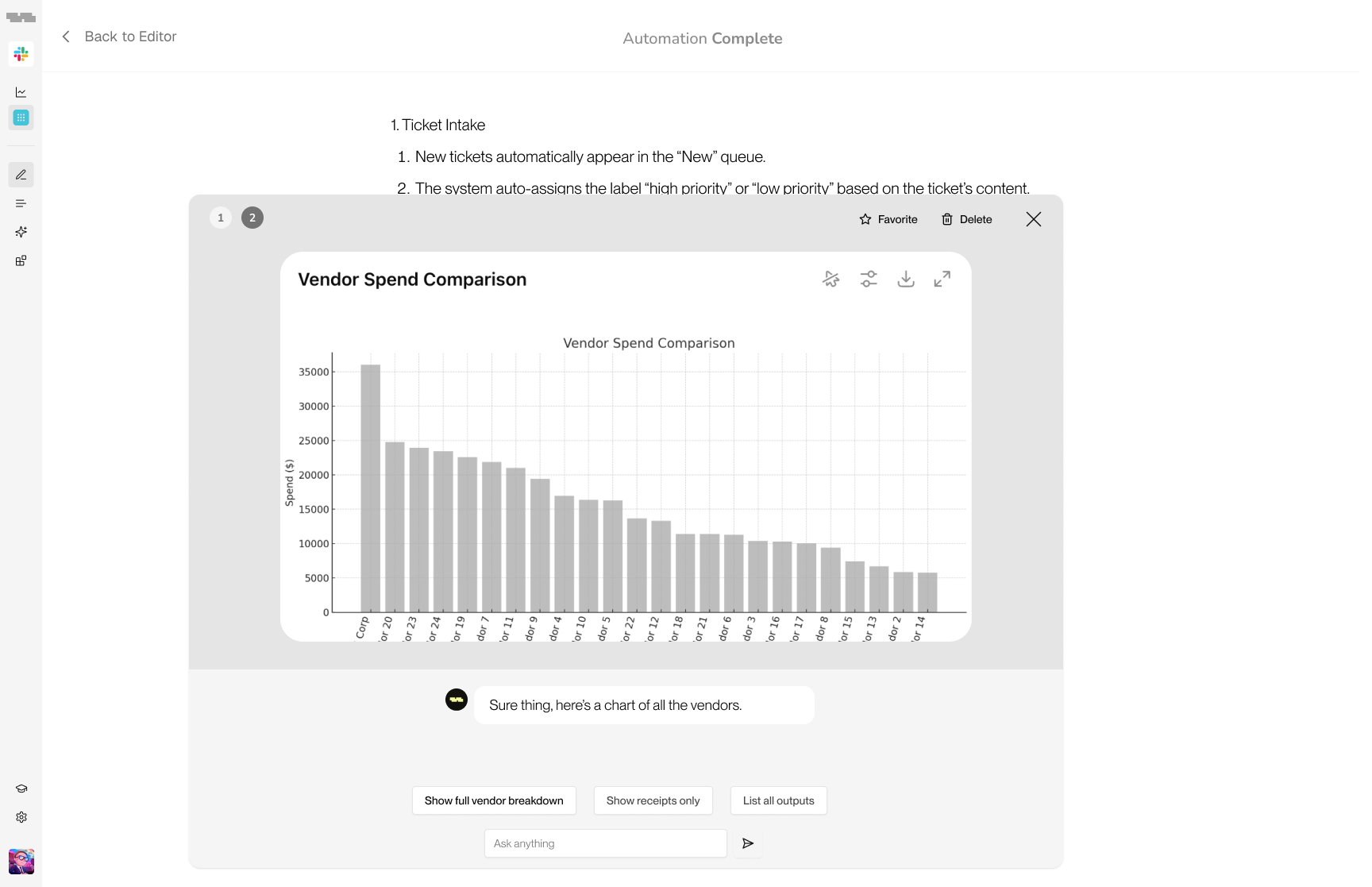
Explore Results

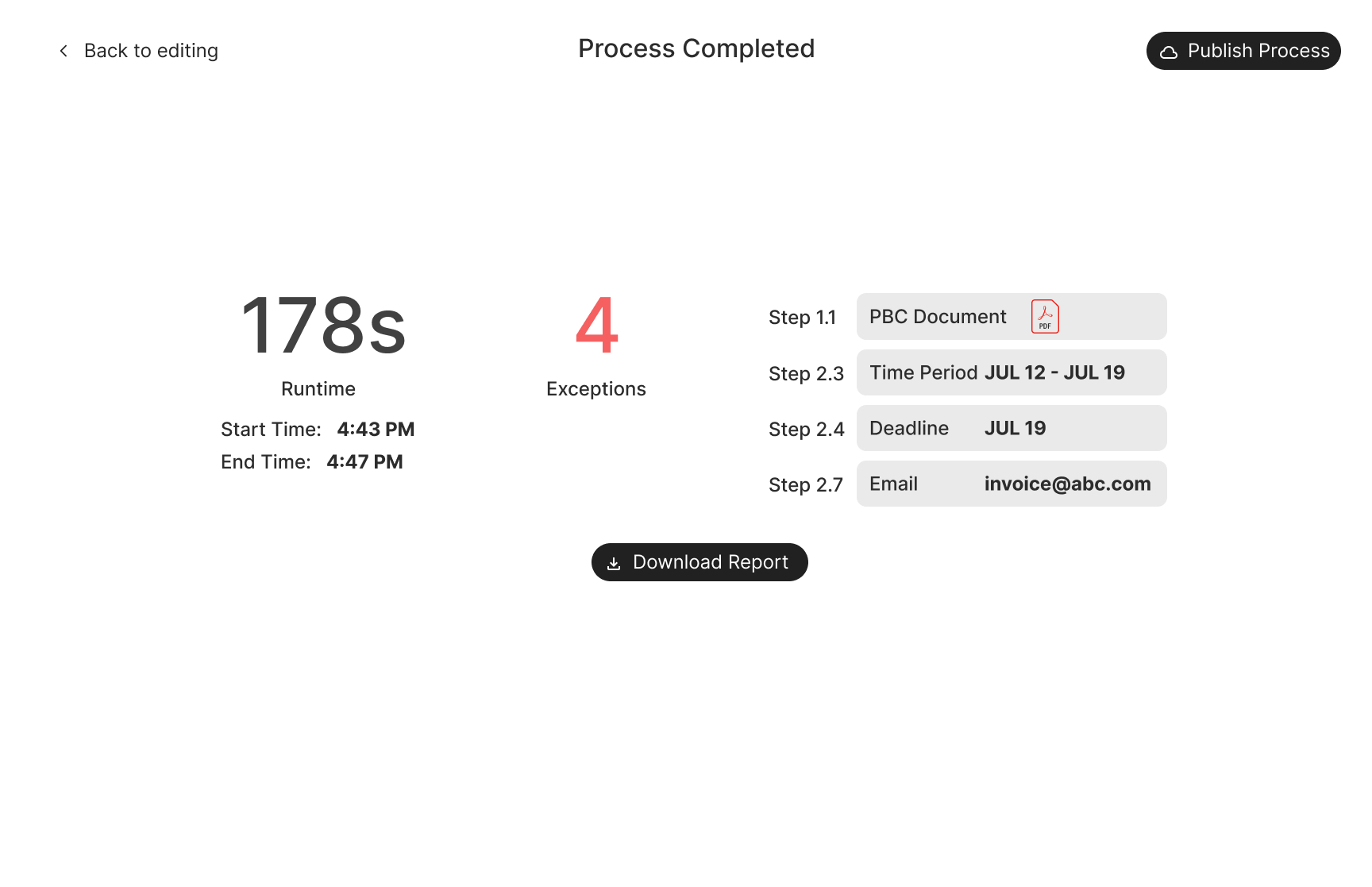
Users can explore the results of the automation by prompting the Kognitos agent.

Interactive Prototype

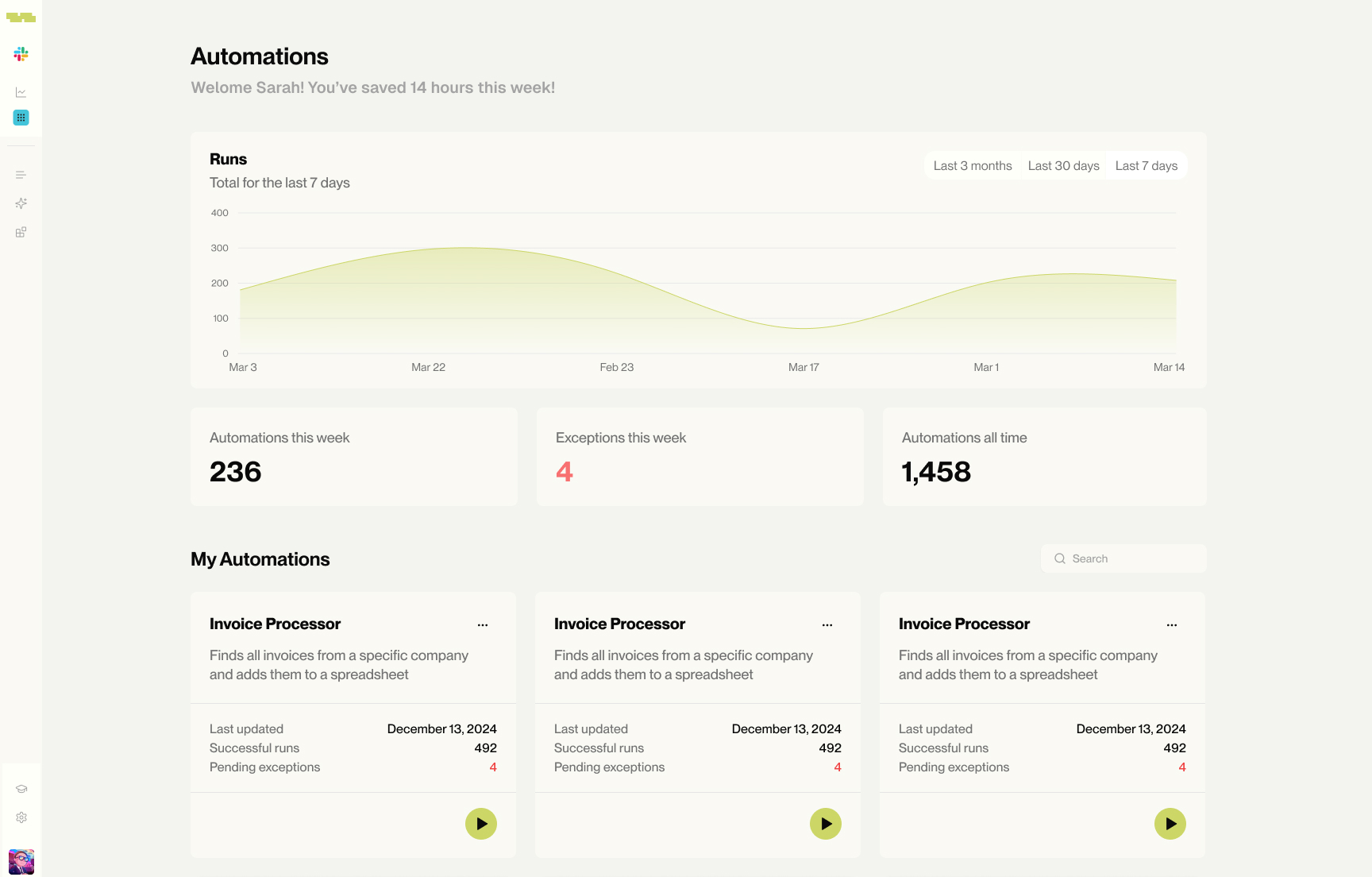
Automations Dashboard

It was also necessary to design a landing page and a dashboard for the automations. Here users can view all their automations, create new ones, and manage them.

Dashboard

The dashboard is the main page for users to manage their automations. It provides a high-level overview of the automations they have created, as well as the ability to create new automations.

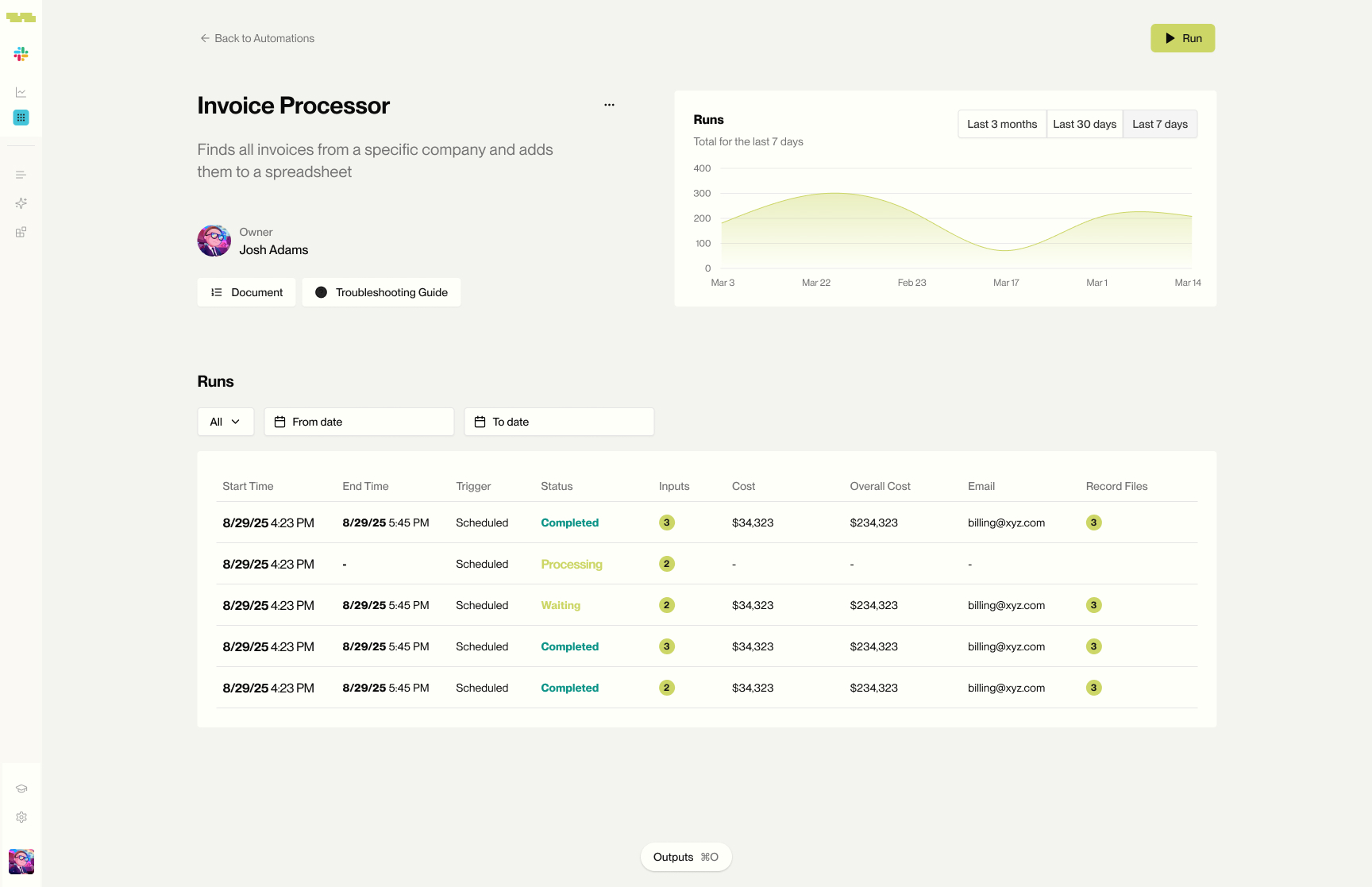
Automation Details

Users can view the details of an automation, including recent runs, inputs, and results.

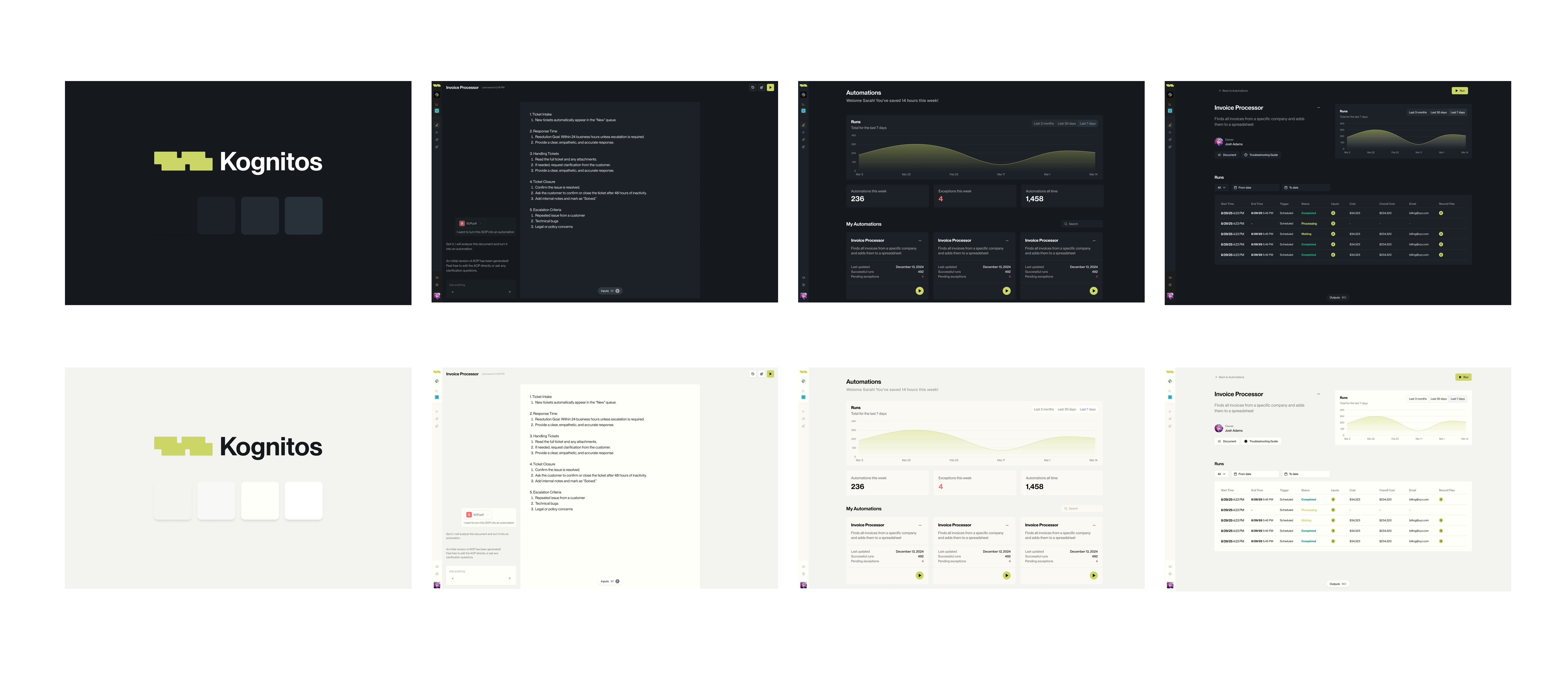
Improving Design System

Dark mode and light mode felt disconnected and incoherent. I strove to make the design system more consistent by exploring a visual design direction and color palettes that would work well across both modes.

Animation

I designed and built a branded page loader using CSS animation.